
Installing Jellyfin on the Raspberry Pi

Thomas Goepel
Last Update há um dia
Preparing your Raspberry Pi for Jellyfin
Before installing the Jellyfin media server on our Raspberry Pi, we need to do some essential preparatory work.
As Jellyfin is available through its repository, we will need to add it for our package manager to install Jellyfin.
As long as you are running a Debian-based operating system such as Ubuntu or Raspberry Pi OS, the following steps will work.
Update your Raspberry Pi’s operating system by using the following two commands.
sudo apt update
sudo apt upgrade -y
Out of the box, the apt package manager does not have support for repositories running behind HTTPS.
To work around this, we can install the apt-transport-https package by running the following command.
sudo apt install apt-transport-https lsb-release
This package adds support for the HTTPS transport protocol to the apt package manager.
We can use the following command to pipe the key directly to our package manager’s key chain.
curl https://repo.jellyfin.org/debian/jellyfin_team.gpg.key | gpg --dearmor | sudo tee /usr/share/keyrings/jellyfin-archive-keyring.gpg >/dev/null
GPG Keys are an essential part of how package repositories remain secure. The keys help ensure that only software signed by the repository will be installed.
We can use a handy one-liner that will automatically generate the correct line for the sources file.
echo "deb [signed-by=/usr/share/keyrings/jellyfin-archive-keyring.gpg arch=$( dpkg --print-architecture )] https://repo.jellyfin.org/debian $( lsb_release -c -s ) main" | sudo tee /etc/apt/sources.list.d/jellyfin.list
This line automatically grabs the current system’s architecture and its current release and fills in the blanks.
You can update the package list by using the following command on your device.
sudo apt update
When you make a change to the sources file, you need to update the package list. Without updating, the package manager won’t be aware of the changes.
This will make it easier to connect to the Jellyfin media server when your device restarts.
Installing Jellyfin on the Raspberry Pi
With the package repository added, we can now install the Jellyfin media server on our Raspberry Pi.
Thanks to all the work we did in the previous section, this step is very straightforward.
sudo apt install jellyfin
This command will download and install Jellyfin from the package repository we added.
The first thing it does is create a new user called “jellyfin“. This user is used to run the software on your Raspberry Pi and is also the user who will need to access your files.
Secondly, it also creates a service for Jellyfin. This service will start the media server automatically at boot and allow you to start, stop, and restart the service easily.
Accessing Jellyfin’s Web Interface
Now that you have installed the Jellyfin media server on your Raspberry Pi, you will want to access its web interface.
hostname -I
Make sure you include the Jellyfin port (8096) at the end of the URL.
You need to replace “[IPADDRESS]” with the IP you got in this section’s first step.
First Setup Experience of Jellyfin
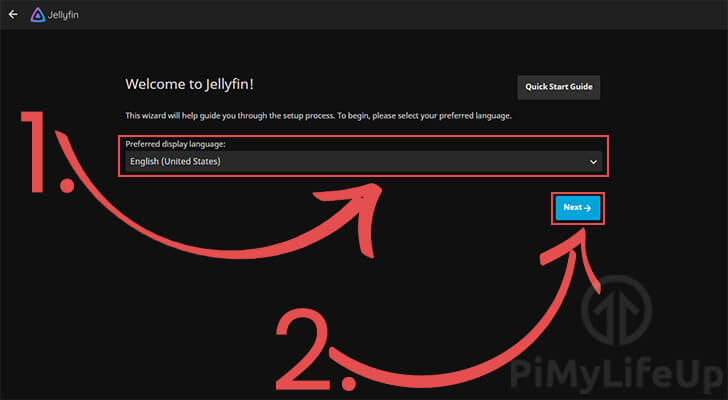
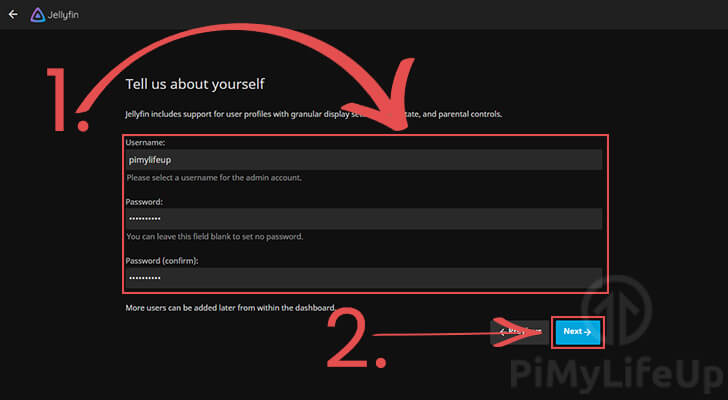
Before you can start using Jellyfin, you will need to run through its first setup experience.
Don’t worry, as the setup experience is a reasonably straightforward process.
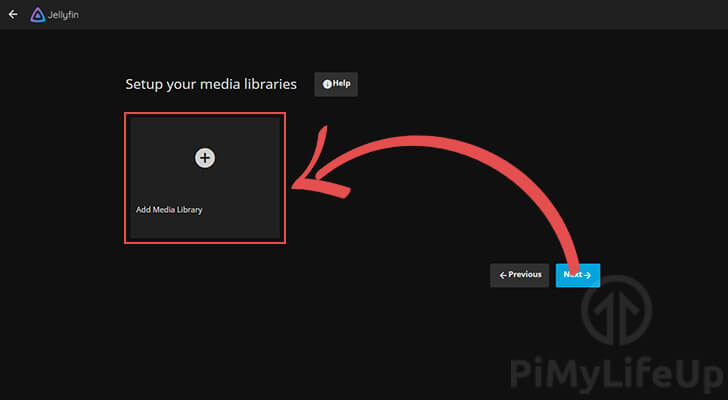
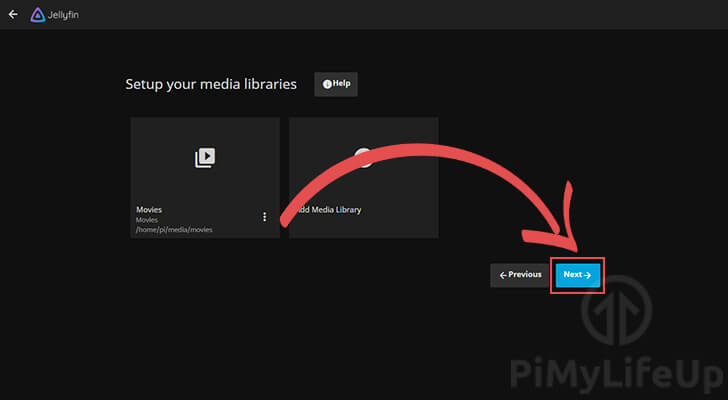
To add your first media folder, click the “Add Media Library” button.
The content type dictates how Jellyfin retrieves information about these files.
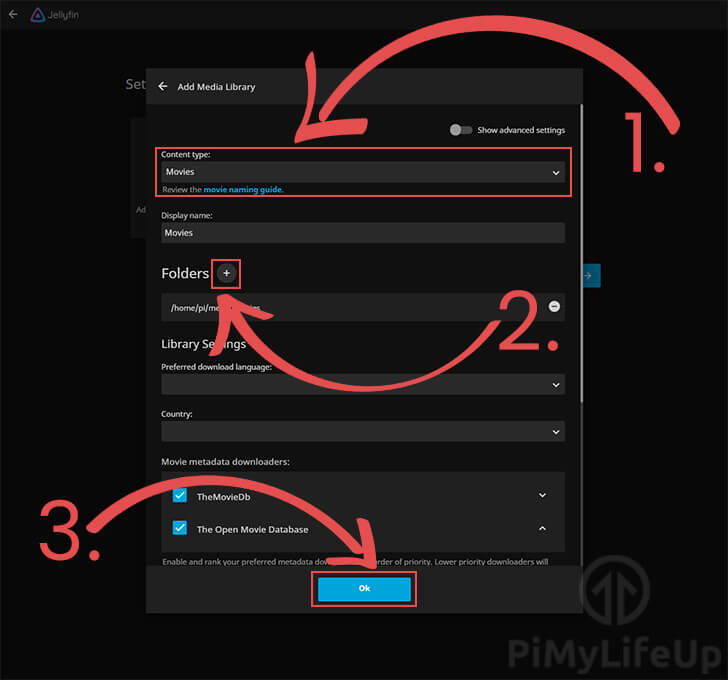
For this guide, we will be sticking with our “Movies” folder.
Click the “Next ->” button to proceed.
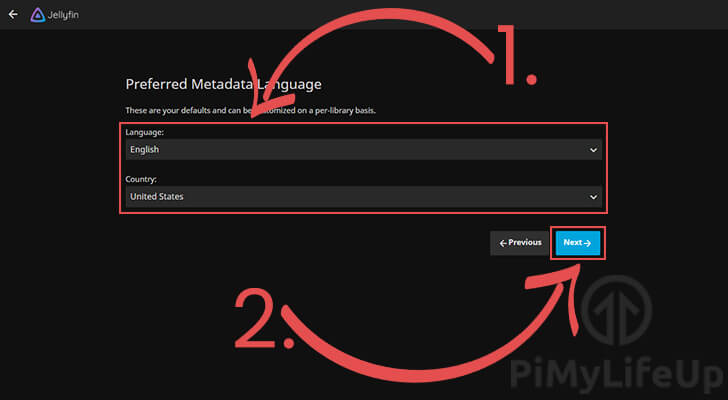
When Jellyfin connects to services such as TVDB, it can fetch episode names and other information in your local language if it is available.
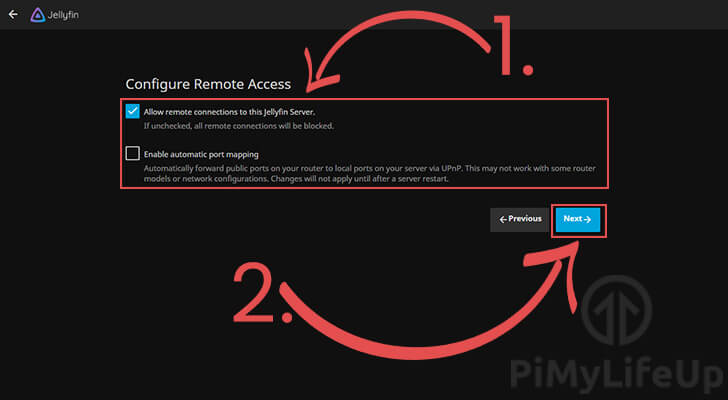
Use these options to block outside access to your Jellyfin server or to get itself to auto-forward access through your router.
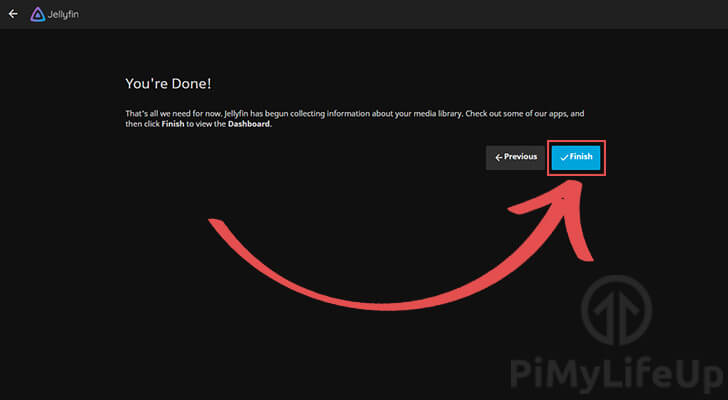
You can click the “Finish” button to finalize the setup.
Logging in to Jellyfin
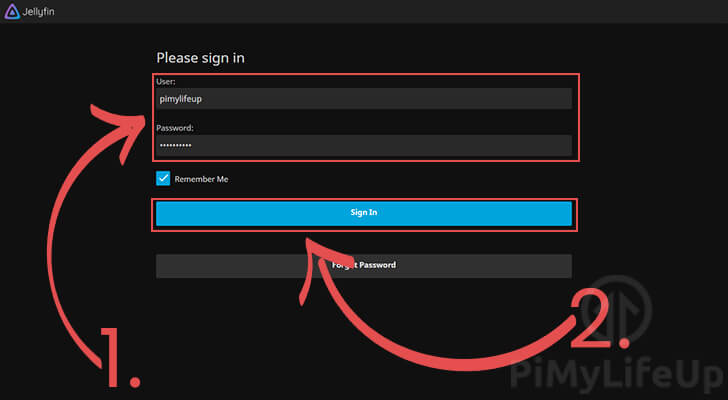
Before accessing your Raspberry Pi’s Jellyfin web interface, you will need to log in.
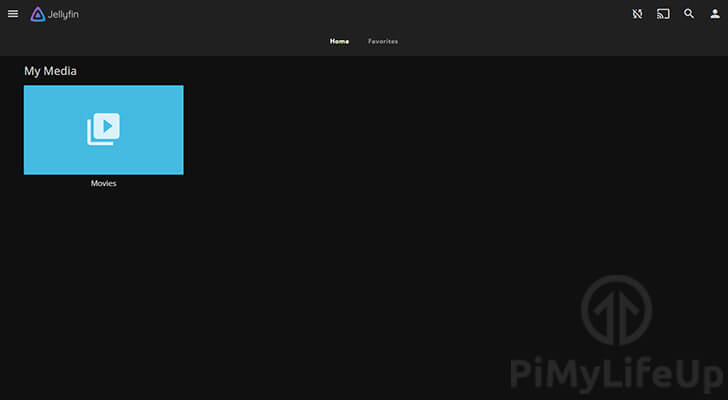
Explore the interface to see how you can configure Jellyfin to best suit your needs.
Enabling Hardware Acceleration for Jellyfin
To help improve your experience with Jellyfin on the Raspberry Pi, you should enable hardware acceleration. These steps will require you to do things on both the Raspberry Pi and the Jellyfin web interface.
Configuring your Raspberry Pi for Hardware Acceleration
We must configure a few things on our Raspberry Pi using the terminal before it will be able to utilize hardware acceleration.
The video group is a special system group with access to features such as the Raspberry Pi’s GPU.
sudo usermod -aG video jellyfin
The -a argument says that we want to add an attribute to a user. The capital G tells usermod that we want to add the video group to jellyfin.
Restarting your Pi is as straightforward as running the command below.
sudo reboot
Telling Jellyfin to use Hardware Acceleration
Now that our Raspberry Pi is better configured for Jellyfin’s hardware acceleration, we need to reconfigure the media server. For this process, you will need to have access to Jellyfin’s web interface.
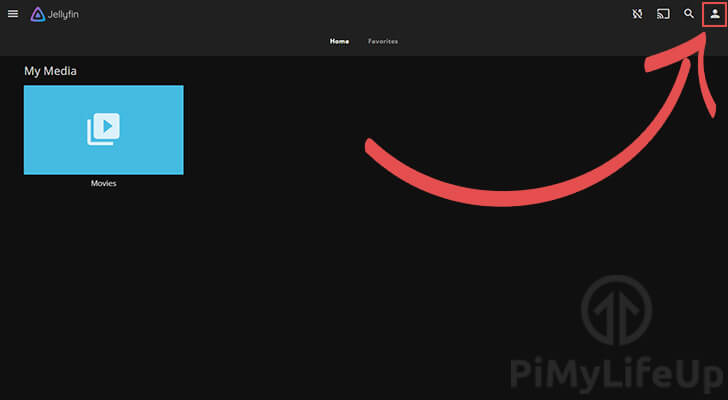
You can get to the user settings by clicking the person icon in the window’s top-left corner.
To change to the dashboard, click the “Dashboard” option.
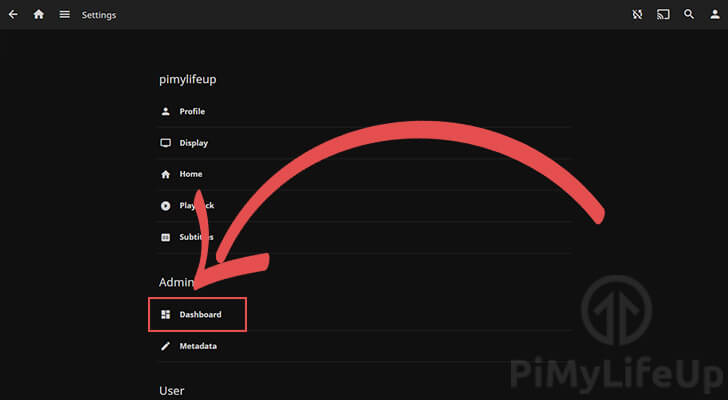
You can find this option in the left-hand sidebar.
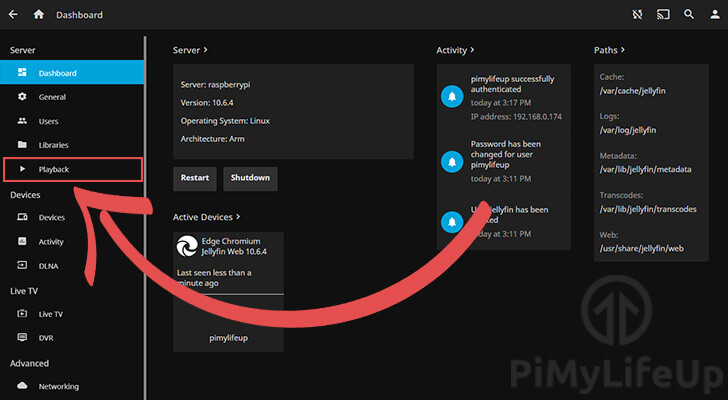
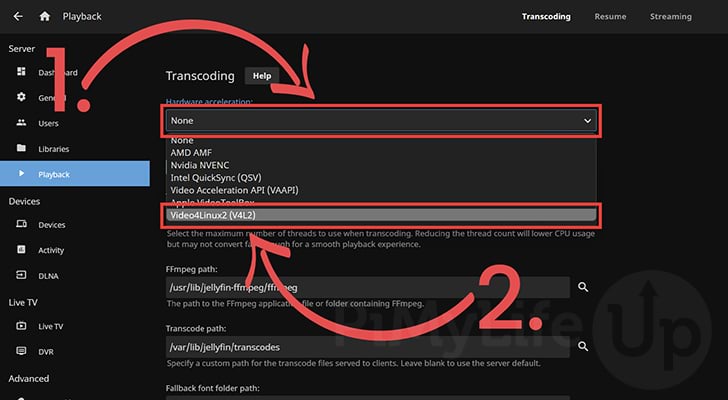
The “Playback” tab is where we can control how files are played from our Raspberry Pi to the Jellyfin clients.
V4L2 is the only one of these options that has built-in support for the Raspberry Pi’s hardware.
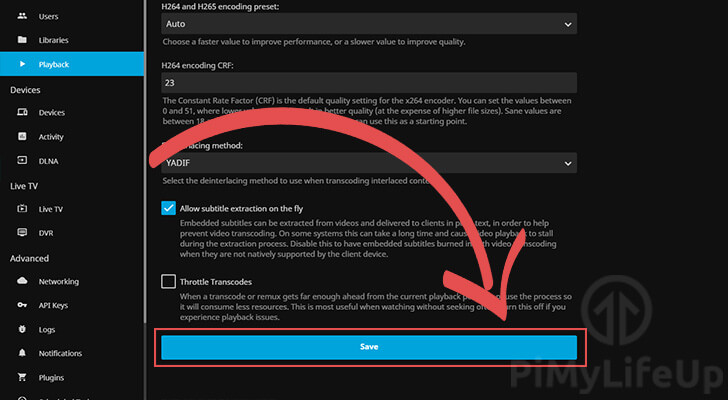
At the bottom, you can save the settings by clicking the “Save” button.
One problem you may encounter when dealing with a media server such as Jellyfin is potential permission issues.
In this section, we will show you how to set the permissions for an ext4-based drive.
Alternative drive format types such as NTFS or FAT will require you to adjust how you are mounting the drive. These drive format types were never designed with the Linux permission system in mind.
You will need to know the exact path, so the script knows what directory it needs to modify permissions for.
For our example, we will use a directory such as “/home/pi/media/movies“.
We can change to the superuser by running the following command on your device.
sudo su
Run the following two commands on your device. Make sure that you replace “[YOURDRIVEPATH]” with the path you want to try correcting the permissions on.
find [YOURDRIVEPATH] -type d -exec chmod 755 {} \;
find [YOURDRIVEPATH] -type f -exec chmod 644 {} \;
These commands will loop through your files and directories and re-adjust the permissions so that our jellyfin user should be able to read the media files within it.
To exit, all you need to do is run the following command on your Raspberry Pi.
exit